
If you track only one contract date, track the notice deadline. That is the date that decides whether you can renew, renegotiate, or cancel before an auto-renewal locks you in. For small and mid-sized businesses, a simple system works: use the same core fields on every contract, review 30-, 60-, 90-, and 120-day windows each month, and give each contract one owner plus a backup.
Here’s the short version:
- I need to track nine fields on every active contract: end date, renewal date, notice period, auto-renewal status, calculated deadlines, owner, department, contract type, priority, and contract value.
- I should review contracts by the earliest action date, not just the end date.
- I need to watch five core metrics: notice deadlines, end dates, unassigned contracts, overdue actions, and auto-renewing contracts.
- I should flag any contract at risk of lapse when the notice deadline is within 14 days and no decision is logged.
- I need a monthly review in the first business week to update records, fix missing fields, and push renew or exit decisions forward.
The article also points to two numbers that show why this matters: 71% of organizations still use spreadsheets across most business units, and one SME estimate says contract mismanagement can cost 9.2% of annual revenue. That is why clear dates, clear ownership, and a simple monthly rhythm matter.
Quick comparison
| Area | What to track | What to do |
|---|---|---|
| Dates | Notice deadline, end date, renewal date | Review by 30/60/90/120 days using a contract renewal planner |
| Ownership | Primary owner, backup, department | Fix any unassigned contract fast |
| Risk | Auto-renewal, overdue action, missing fields | Escalate before the deadline passes |
| Status | Active, Pending Renewal, Renewing, Expired, Terminated | Keep labels the same across teams |
| Monthly review | First business week of the month | Update records and rerun filters |
If I had to boil the whole guide down to one line, it would be this: clean fields, clear review windows, and one monthly check keep contract deadlines from slipping.
sbb-itb-49df6ae
Set up your expiry fields
Expiry tracking starts with clean contract data. If fields are missing or messy, filters stop working, reviews take longer, and upcoming renewals can slip past unnoticed. The fix is simple: use the same core fields on every active contract.
The fields every active contract needs
Every active contract should include nine core fields, grouped by function:
- Timing: contract end date, renewal date, notice period, auto-renewal status
- Ownership: owner, department
- Prioritization: contract type, priority, contract value
A strong record might look like this: end date 11/30/2026, renewal date 10/01/2026, 60-day notice, auto-renewal Yes, owner Maria Lopez, priority High, value $25,000.
That kind of record gives your team something clear to act on. By contrast, a weak record says something like “expiring later this year,” which doesn’t help much when someone needs to review deadlines fast.
Field selection matters. But consistency matters even more.
Standardize field rules across teams
Use MM/DD/YYYY in every record, and store the notice deadline as a fixed field. Use controlled lists for owners, departments, and status labels so records don’t split into duplicates just because one person writes “Legal” and another writes “legal.”
For status, stick to fixed values:
- Active
- Pending Renewal
- Renewing
- Expired
- Terminated
Trackado supports structured repositories, customizable fields, and key-date tracking, which makes it easier to enforce the same field rules across teams.
When everyone works from one source of truth, expiry metrics turn into a simple monthly review instead of a messy reconciliation project. Once those fields are in place, the next step is setting review windows that turn clean data into action.
Choose your tracking windows
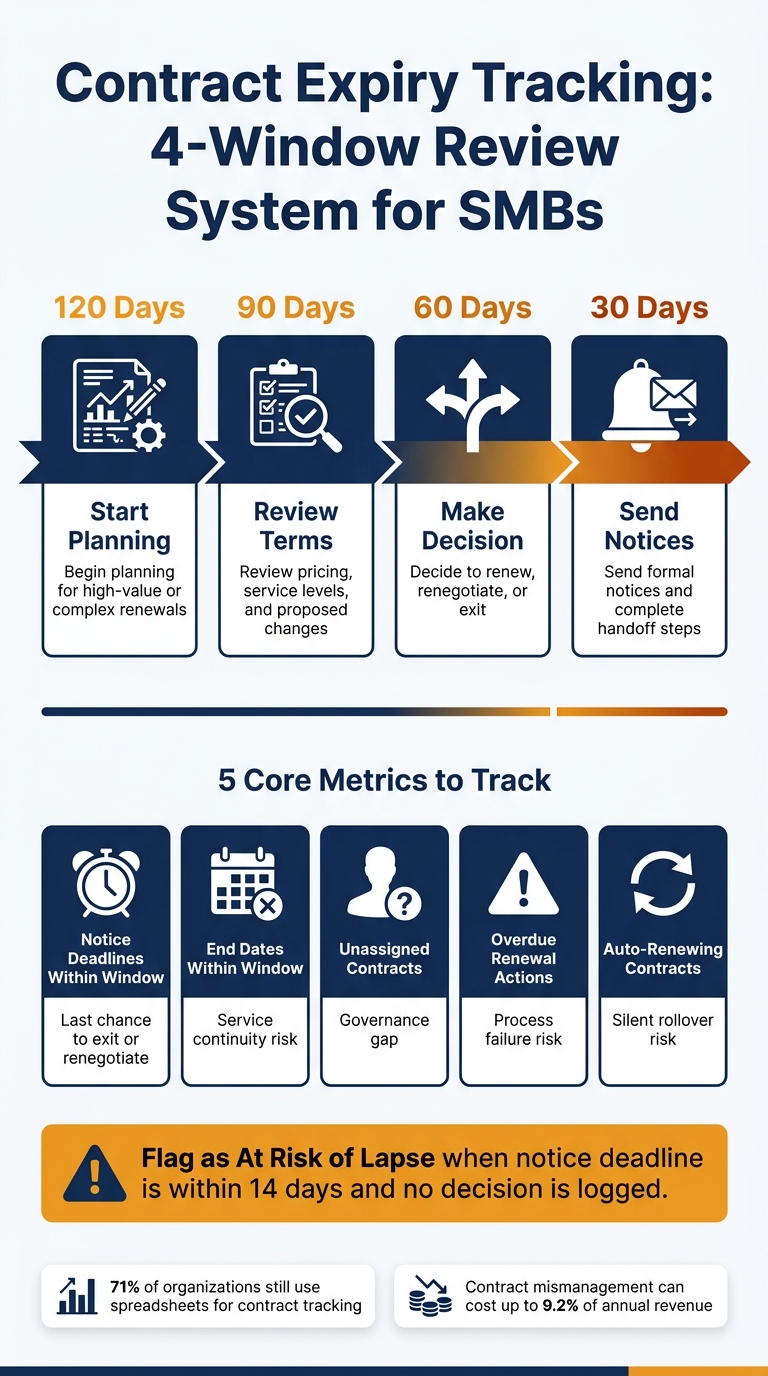
Contract Expiry Tracking: 4-Window Review System for SMBs
Once your expiry fields are clean, tie each contract to the earliest date that needs action. That means tracking the notice deadline, not just the expiration date. In plain English: focus on the last day you can act before a renewal is locked in.
Use 30-, 60-, 90-, and 120-day review windows
Each window does a different job:
- 120 days: start planning for high-value or more complex renewals
- 90 days: review pricing, service levels, and any changes
- 60 days: decide whether to renew, renegotiate, or exit
- 30 days: send notices and finish handoff steps
Set reminders based on the notice deadline, not the expiration date.
This helps you sort contracts by urgency before they pile up on your dashboard.
The core expiry metrics to track
Your dashboard and monthly review should focus on five core metrics:
| Metric | What It Signals |
|---|---|
| Notice deadlines within window | Last chance to exit or renegotiate before renewal locks in |
| End dates within window | Service continuity risk if renewal or transition is not finalized |
| Unassigned contracts | Governance gap – no one is responsible for the deadline |
| Overdue renewal actions | Process failure that may lead to financial loss or legal exposure |
| Auto-renewing contracts | Contracts that roll over on their own if no one acts in time |
Treat auto-renewing contracts as their own risk group. They can renew quietly if no one steps in on time.
These metrics are most useful when they feed both dashboard views and monthly reviews.
Build dashboard views your team can use
Turn those expiry metrics into views your team can scan in seconds. A date-sorted list isn’t a dashboard. It’s still just a spreadsheet with better formatting. A useful dashboard shows what needs attention now, who owns it, and what should happen next – all tied to the five core metrics: notice deadlines, end dates, unassigned contracts, overdue actions, and auto-renewals.
Group contracts by timeframe and urgency
Group contracts into 30-, 60-, 90-, and 120-day buckets based on urgency. The 120-day view works well for complex renewals that need more time and more back-and-forth. Then add an action status so people see next steps, not just calendar dates.
Useful action states include:
- Upcoming Review
- Decision Pending
- At Risk of Lapse
At Risk of Lapse deserves the most attention. Flag it when the notice deadline is within 14 days and no decision is logged.
A summary row at the top helps leadership get the picture fast. Something like “12 contracts expiring in 30 days, 34 in 90 days” gives an instant sense of renewal pressure without forcing anyone to dig through records one by one. After that, layer in filters so each team only sees the contracts it owns.
Add filters for department, owner, type, and priority
Filters are what make the dashboard useful day to day. Without them, people end up scrolling through everything and missing what matters. With them, a team can narrow the view to only high-priority contracts due in the next 90 days.
For most SMBs, the practical filter set covers department (finance, operations, IT, procurement, legal), contract owner, contract type (vendor, lease, insurance, SaaS), and priority level (Low, Medium, High, Critical). Priority helps separate routine contracts from renewals that could hit cost, service, or risk if ignored. Trackado supports custom fields and department-based views for this.
| Filter | Example Use |
|---|---|
| Department | Operations filters vendor renewals |
| Contract Owner | IT sees software and telecom contracts |
| Contract Type | Finance isolates insurance and SaaS contracts |
| Priority Level | Leadership reviews only Critical and High contracts |
Also add a No Owner Assigned filter. Those contracts are usually the first to slip through a monthly review.
Assign ownership and run the monthly expiry report
Use the owner filter and No Owner Assigned view to turn dashboard alerts into action that lands with a specific person. Every active contract needs one named internal owner. That owner keeps the record up to date, watches key dates, and moves the renewal or exit decision forward. Assign one primary owner and one backup. If nobody owns a contract, it’s much easier for deadlines to slip and auto-renewals to pass by unnoticed.
Ownership should sit with the person tied to the contract’s business outcome. In plain terms, give it to the person who owns the business need behind the agreement. For vendor contracts, that’s often the head of the department using the service – IT for software, Operations for logistics, or Marketing for agencies. For customer contracts, it’s usually the account manager or sales rep. In Trackado, contracts can be assigned to specific owners and grouped by department, which makes monthly dashboards and reports easier to send to the right people.
Owner responsibilities and monthly review steps
Run the monthly review using the same 30-, 60-, 90-, and 120-day buckets already used in the dashboard. Do it during the first business week of each month. That timing matters. It gives teams time to respond to anything that shows up in the 30- or 60-day windows.
The review should:
- Confirm expiry and notice dates
- Verify notice periods
- Update contract status
- Check upcoming notice deadlines
- Flag missing fields
- Escalate unresolved renewals in the 30- or 60-day windows
Before the review starts, owners should check high-value contracts, gather early renewal terms, and fix obvious data gaps – especially missing expiry dates and blank owner fields.
The metrics that trigger action
Each metric should lead to one clear next move.
| Metric | What It Measures | Action It Should Trigger |
|---|---|---|
| Expiring in next 30 days | Most urgent renewals and terminations | Immediate decision; escalate if still unresolved |
| Expiring in next 60 days | Short-term renewal pipeline | Start negotiation, budget review, and internal approvals |
| Expiring in next 90 days | Medium-term planning horizon | Review strategic fit; schedule stakeholder discussions |
| Expiring in next 120 days | Longer-term contract roadmap | Identify candidates for consolidation or renegotiation |
| Renewal decisions completed | Monthly decision throughput | Investigate bottlenecks where decisions are stalling |
| Overdue reviews | Reviews that passed without action | Assign urgent follow-up; escalate repeated delays |
| Missing key fields | Data quality gaps across the repository | Run cleanup; prioritize high-value contracts first |
| Exposed to auto-renewal | Contracts with upcoming auto-renewal risk | Decide to continue, renegotiate, or send non-renewal notice |
After the review, reconcile the report with the live repository. If a contract was renewed, update the expiry date. If it was terminated, mark it inactive so it stops showing up in active metrics. If a vendor was replaced, link the old contract to the new one so the audit trail stays intact. Then rerun the same 30-, 60-, 90-, and 120-day filters after those updates so the report lines up with the live repository.
Conclusion: Clear fields, clear windows, and a monthly review rhythm
Contract expiry tracking doesn’t need to be complicated. It does need to be consistent.
These five parts work best as one system: clean data, notice deadlines, filtered views, clear ownership, and a monthly review. If you protect one thing first, make it the notice deadline.
Notice deadlines matter more than expiry dates. The action date is the last day you can renew, renegotiate, or cancel. Once that date is easy to see, the dashboard and owner can turn it into action.
Filtered views and named owners make deadlines and responsibility visible. That keeps each team focused on its own contracts, deadlines, and next steps. Trackado supports this with department, owner, and category views, plus automated reminders. From there, the monthly review keeps the workflow moving.
The monthly review pulls everything together. Looking at the 30-, 60-, 90-, and 120-day windows each month gives teams time to act. This isn’t meant to be a heavy process. It’s a steady rhythm where decisions happen before deadlines force them.
Clean fields. Clear windows. One monthly review.
FAQs
What is the earliest action date?
The earliest action date is the last day your team can cancel a contract, based on where that contract sits in its lifecycle. The system calculates it by subtracting the required notice period from the renewal date.
To give teams enough time to move, automated alerts often begin 90 days before an expiration date or other deadline. That extra runway helps people review terms, renegotiate, or end agreements before auto-renewal kicks in or service gets interrupted.
How do I calculate the notice deadline?
Review each contract and find the notice period needed for cancellation. Then save that Notice Term in Trackado’s contract details. Once it’s there, Trackado can automatically calculate the last date to cancel.
After that, set automated alerts 30, 60, or 90 days before the deadline. That gives your team a clear heads-up, time to check the terms, and a chance to act before the window closes.
Who should own each contract?
Assign each contract to a specific person so there’s clear accountability from start to finish, including creation, approval, execution, monitoring, and renewal.
You can also group contracts by department or team to make management easier. In Trackado, specific users can get automated email reminders for milestones and renewals.