
Automating contract approvals saves time, reduces errors, and ensures compliance. Manual processes often lead to delays, confusion, and missed opportunities. By mapping your current workflow, identifying bottlenecks, and implementing automation tools, you can streamline approvals and improve efficiency. Here’s how:
- Document Your Current Process: Identify inefficiencies like delays, version control issues, or manual data entry errors.
- Set Automated Rules: Use conditional logic to route contracts based on value, type, or department. Add escalation policies for delays.
- Choose the Right Software: Look for features like centralized storage, e-signatures, real-time tracking, and AI-powered data extraction.
- Test and Train: Run sample workflows, train your team, and refine processes based on feedback.
- Monitor Performance: Track metrics like turnaround time and adjust workflows to address recurring bottlenecks.
Automation can cut approval times by 40%-60%, reduce costs, and prevent revenue loss. Tools like Trackado simplify the process with flexible workflows, secure storage, and integrated e-signatures. Start small, optimize as you go, and watch your efficiency improve.
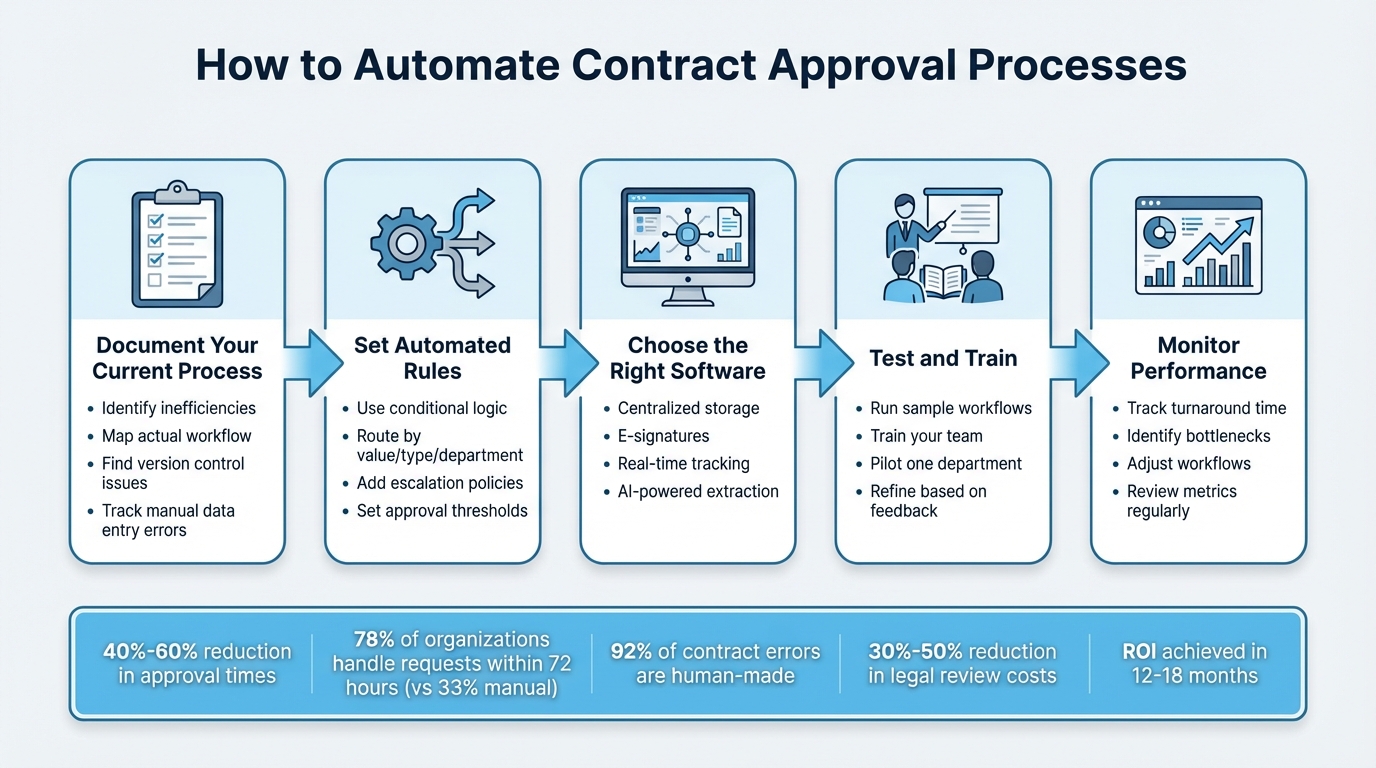
5-Step Contract Approval Automation Process
Review Your Current Contract Approval Process
Before diving into automation, take time to document and analyze your current contract approval process. This step helps identify inefficiencies that automation can address. Typically, contract approvals follow a structured sequence: a salesperson or procurement team drafts the agreement based on negotiated terms, which is then reviewed by department heads for policy compliance. The finance team checks for budget alignment, while the legal department examines compliance issues, confidentiality clauses, and dispute resolution terms. An authorized signatory reviews the final draft, and if any errors are found, the contract cycles back for revisions. Finally, senior management gives the green light for execution.
"Manual contract approvals invite delays, confusion, and missed opportunities. At a glance, the steps might look simple: draft, review, revise, approve, and finalize. Yet, the moment multiple teams and stakeholders become involved, unstructured workflows start showing cracks." – Moxo
This insight highlights the importance of mapping out your specific process in detail.
List the Steps in Your Current Workflow
Start by documenting who interacts with each contract and at what stage. For example, while your sales team may draft the initial version, does it go to a department manager first or directly to legal? Does finance review every contract, or only those exceeding $10,000? Capture the actual workflow, not just the idealized version, and include details like timeframes for each stage and approval authority at every level. For instance, contracts under $10,000 might require only a department manager and finance manager’s sign-off, while those over $50,000 could need approvals from executive sponsors, finance VPs, and even the CEO.
Also, evaluate how your team tracks progress. Are contracts buried in endless email chains with subject lines like "RE: RE: FWD: Contract_final_v6.docx"? Do managers rely on separate spreadsheets? When someone asks, "Where’s the Johnson contract?" how many people need to be contacted before you get an update? These visibility gaps often lead to "document drift", where multiple teams edit different offline copies, creating conflicting versions.
By identifying these steps, you’ll be better equipped to uncover bottlenecks.
Find Where Delays Happen
Take a closer look at where contracts tend to stall. A common culprit is the back-and-forth of redline emails – multiple attachments and versions can lead to confusion and missed comments. Another issue is person-specific dependencies; delays often arise when decision-makers are on vacation, stuck in meetings, or focused on other priorities. Departmental silos between procurement, legal, and finance can also create friction during handoffs, while manual data entry into CRM or ERP systems eats up time and increases the risk of errors.
"Contract approvals are often pending endlessly due to trivial reasons or the absence of the signatory or simply because the manager refuses to approve." – Cflow
Look for recurring patterns in delays. Does the legal team frequently miss deadlines? Do high-value contracts over $50,000 consistently trigger unplanned escalations? Poor contract management can have serious financial consequences – businesses risk losing up to 9% of their annual revenue, and in industries like healthcare, manual processes may contribute to losses exceeding $150 billion annually. Pinpointing these delays is the first step toward creating an automated workflow that eliminates inefficiencies.
sbb-itb-49df6ae
Plan Your Automated Contract Approval Workflow
Once you’ve identified the weak points in your contract approval process, it’s time to design a workflow that addresses them. This means defining clear stages, assigning responsibilities, and setting up routing rules. A well-structured workflow ensures contracts move efficiently through the right channels.
"A structured approval workflow addresses these challenges by ensuring every decision follows a clear path with traceable accountability." – Moxo
Start by standardizing the key stages in your process. Most workflows include steps like internal origination (drafting the contract), internal review (department heads ensure compliance with policies), legal and compliance review (attorneys evaluate risks and clauses), signatory review (authorized signers give final approval), and final execution (the contract is signed and stored). For instance, contracts exceeding $50,000 can be automatically routed to the CFO, while agreements over $100,000 or $250,000 might require additional executive sign-off. Clearly outline these stages and establish rules to guide your automated workflow.
Set Up Workflow Stages and Routing Rules
When assigning tasks, focus on roles rather than specific individuals. For example, route contracts to "Finance Manager" or "Legal Director" instead of naming particular employees. This ensures the process runs smoothly, even if someone is out of the office.
Next, incorporate conditional logic into your workflow using "if/then" rules. For example:
- If a contract exceeds $50,000, route it to the CFO.
- If it’s an NDA, skip the finance review entirely.
Determine how approvals should flow at each stage. You might choose:
- Sequential routing, where approvals happen one after another, ensuring accountability.
- Parallel routing, where multiple departments, like Legal and Finance, review a contract simultaneously to save time.
- A hybrid approach, combining both methods based on the contract’s complexity.
To avoid delays, implement escalation policies. For example, if an approver hasn’t acted within three business days, the system can escalate the task to their manager or a backup. Organizations that include exception management in their workflows report 40% faster resolution times. Also, plan for scenarios like rejections or unavailability by adding revision loops and alternate approval paths, keeping the process on track.
By addressing bottlenecks and delays, these rules streamline your approval process.
| Workflow Component | Description | Example Rule |
|---|---|---|
| Thresholds | Logic based on numerical values | If "Contract Value" > $50,000, route to CFO |
| Parallel Routing | Simultaneous review by teams | Legal and Finance receive notification at the same time |
| Escalation | Time-based movement of tasks | If no action in 48 hours, notify Department Head |
| Conditional Step | Logic based on document type | If "Contract Type" = NDA, skip Finance review |
Create a Visual Map of the Workflow
With your stages and routing rules established, create a visual map of the workflow to ensure clarity for everyone involved. Before implementing it in your software, diagram the process. This allows both technical and non-technical team members to understand dependencies and identify potential issues early on. Include every step, from the initial request to final signature and storage, as well as branches for different contract types or values.
"Mapping provides visibility. For example, a purchase order may start in procurement, move through finance, and then require executive approval if above a spending threshold. Visual mapping tools help teams see dependencies and spot bottlenecks before they become issues." – The Moxo Team
A visual map reduces confusion and highlights unnecessary steps. Poorly structured processes can lead to knowledge workers spending up to 30% of their time searching for or recreating information. A detailed map ensures everyone knows where each contract stands, saving time and improving efficiency.
Select Contract Management Software
Once you’ve mapped out your workflow, the next step is following a contract automation checklist to find software that can bring it to life. The ideal platform should handle intricate routing rules, keep your documents secure, and offer a centralized repository – all without requiring constant tool-switching.
Features You Need
Let’s talk automation. A good system should have automated routing and escalation. For example, contracts exceeding $50,000 could automatically head to the CFO for approval. Conditional logic is another must-have, allowing you to set "if-then" rules – like bypassing finance review for NDAs but flagging vendor contracts for legal approval. Whether your workflow needs sequential approvals (one person signs, then the next) or parallel approvals (legal and finance reviewing simultaneously), the software should adapt to your needs.
A centralized, secure, and searchable repository is also critical. This ensures everyone with proper access can quickly locate the latest version of a contract. Integrated e-signatures save time by eliminating the need for printing and scanning. Plus, AI-powered data extraction can pull out key details – like renewal dates or payment terms – and trigger the appropriate approval paths automatically.
Security features are equally important. Look for encryption (both at rest and in transit), role-based access controls, and audit trails to track every action taken on a document. Automated alerts help your team stay on top of deadlines and pending approvals. Performance analytics are another bonus, giving you insights into where bottlenecks might be slowing things down.
| Feature Category | Essential Capabilities |
|---|---|
| Workflow Design | Sequential/parallel paths, conditional routing, escalation rules, and ad-hoc approvers. |
| Document Management | Centralized cloud storage, version control, smart tagging, and AI data extraction. |
| Security & Compliance | Encryption (TLS/SSL), role-based permissions, audit trails, and ISO 27001 certification. |
| Communication | Automated email reminders, real-time dashboards, and mobile-friendly notifications. |
| Execution | Integrated e-signatures (ESIGN Act compliant), signing order automation, real-time tracking. |
These features form the backbone of a strong contract management system, as shown by Trackado’s capabilities.
How Trackado Handles Automation
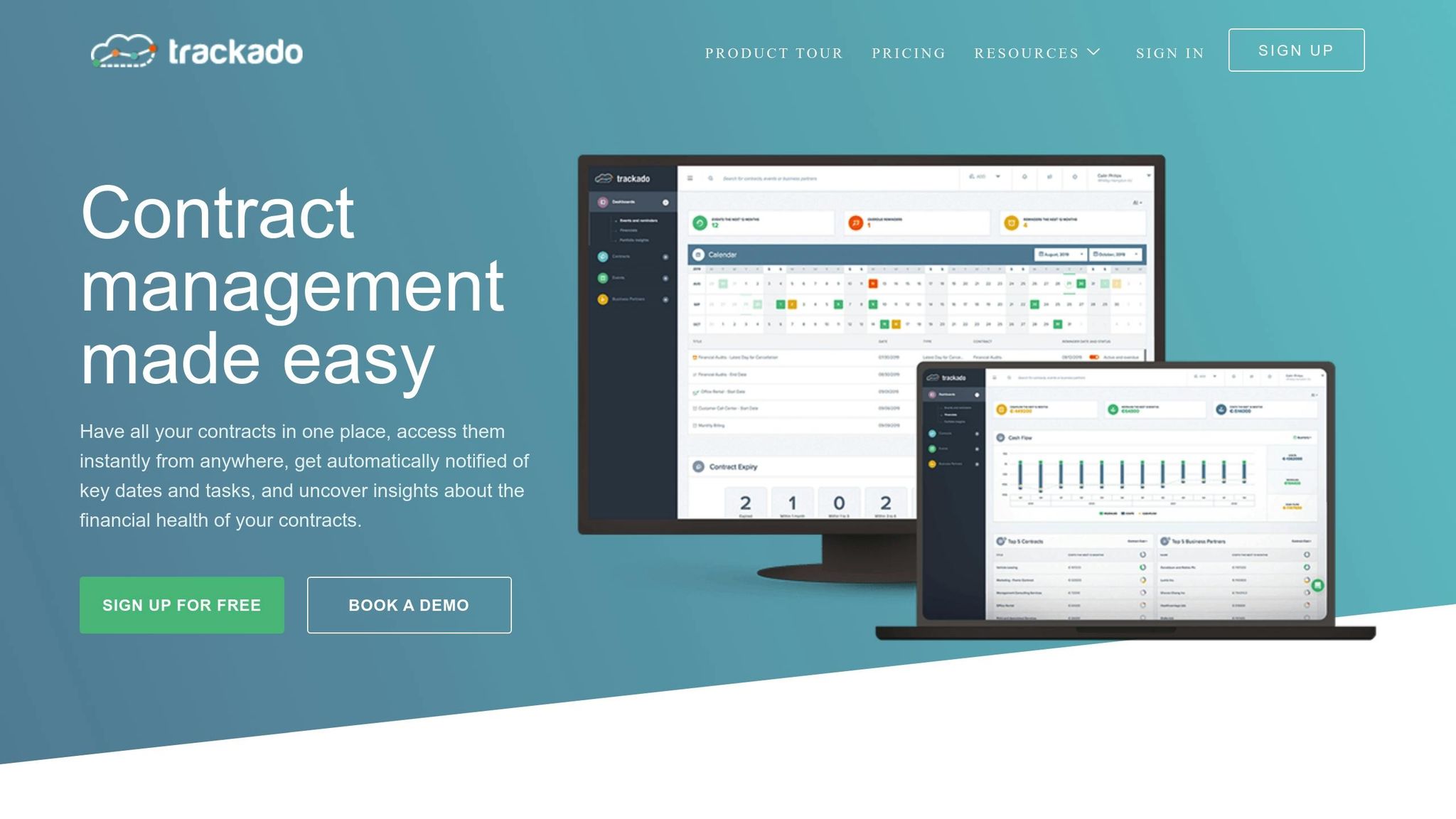
Trackado takes automation to the next level by combining AI-powered data extraction with customizable approval workflows. When you upload a contract, the platform scans it for critical details like renewal dates, payment schedules, and obligations – saving you hours of manual work. Conditional routing then ensures the contract gets to the right people based on its value, type, or department.
Its task-based approval system allows you to assign roles instead of specific individuals, keeping things moving even if someone is unavailable. Escalation protocols step in when an approver doesn’t respond within a set timeframe, automatically passing the task to a backup or manager. Trackado also supports both sequential and parallel signing, with all documents securely stored in a centralized cloud repository protected by SSL encryption.
The platform keeps you on track with automated alerts for upcoming renewals, pending approvals, and missed deadlines. Real-time dashboards offer a clear view of contract progress, while customizable fields let you track the data that matters most to your business – whether that’s contract value, risk level, or compliance status.
Trackado Pricing Plans
Trackado offers four pricing tiers designed to accommodate different team sizes and contract needs.
- The Free plan is ideal for solo users, allowing up to 15 contracts and 2 custom fields.
- The Starter plan, priced at $39/month, supports 3 users and 60 contracts with 5 custom fields.
- The Business plan, at $129/month, includes 8 users, 300 contracts, unlimited custom fields, and full workflow automation.
- The Enterprise plan, for $299/month, provides 25 users, unlimited contracts, unlimited custom fields, workflow templates, and SAML authentication. Additional users can be added for $10/month.
| Plan Name | Price (Monthly) | Users | Contracts | Custom Fields | Workflows |
|---|---|---|---|---|---|
| Free | $0 | 1 | 15 | 2 | No |
| Starter | $39 | 3 | 60 | 5 | No |
| Business | $129 | 8 | 300 | Unlimited | Yes |
| Enterprise | $299 | 25 | Unlimited | Unlimited | Yes (with templates) |
Trackado also offers a free trial, so you can test the platform using your actual contracts before committing to a subscription plan. This way, you can see firsthand how it fits into your workflow.
Set Up Automated Workflows in Trackado
Once you’ve chosen a plan, the next step is to configure your approval workflows in Trackado. The platform streamlines this process, helping your team avoid unnecessary delays.
Assign Roles and Approvers
Start by assigning a Contract Owner for each contract in your system. This person acts as the main point of contact and oversees the contract from start to finish. To keep things organized, set up Business Units to represent your legal entities or divisions and create Organizational Units for departments, teams, or groups. These structures ensure that only authorized personnel can access sensitive agreements.
Instead of assigning approvals to specific individuals, assign them by role. For example, designate the Finance Manager role rather than naming a particular person. This way, if someone is unavailable or leaves the company, workflows remain uninterrupted. You can also use custom properties – like contract value, risk level, or department – to trigger workflows tailored to your approval needs.
| Contract Value | Primary Approver | Secondary Approver | Final Authority |
|---|---|---|---|
| Under $10,000 | Department Manager | Finance Manager | Not Required |
| $10,000–$50,000 | Department Director | Finance Director | Legal Review |
| Over $50,000 | Executive Sponsor | Finance VP | CEO/Board |
With these roles established, you can move on to automating specific conditions and escalation rules in Trackado.
Configure Conditions and Escalations
Trackado’s conditional logic ensures approvals move smoothly through the system. Lifecycle statuses – like Draft, Active, Pending, In Negotiation, and Expired – trigger different workflow stages based on contract details. For example, contracts exceeding $10,000 might require finance approval, while NDAs under $5,000 could skip finance and proceed directly to legal.
To handle delays, set up escalation rules. If an approver doesn’t respond on time, Trackado automatically escalates the task to a backup approver or their manager. You can also enable reminders for the Contract Owner by selecting "More options" in the lifecycle settings. Additionally, configure end-of-term actions: contracts can automatically switch to "Expired" upon reaching their end date, or trigger a "Prolong automatically" action if renewal is expected.
Enable E-Signatures and Centralized Storage
Trackado’s built-in e-signature feature eliminates the need for printing and scanning. Once you start the e-signing process, participants receive an email link to review, complete, and sign the document. After all signatures are collected, the finalized document, signing log, and audit trail are sent to the Contract Inbox for review before permanent storage.
For document storage, you can upload files with pre-save encryption or link external services like SharePoint, OneDrive, or Dropbox. Linking external services allows you to maintain existing access controls while centralizing contract records in Trackado. Use the Contract Inbox to review signed documents before committing them permanently. You can also monitor e-signature statuses – such as In Progress, Signed, Cancelled, Declined, or Expired – and send manual reminders for pending signatures when needed.
Test, Train, and Monitor the Workflow
Run Tests with Sample Contracts
Before rolling out your automated workflow, it’s crucial to test it using sample contracts to catch any potential issues early. Take advantage of tools like Trackado’s "Incorrect Rules" alerts and Undo feature to identify and resolve logic errors quickly.
Compare your new automated workflow to the manual process map you initially created. This comparison ensures you’ve addressed the delays you identified. For instance, if finance approval used to take five days, your test should show that automated routing significantly cuts that time down. To test smart routing, try running contracts with different values through the system. For example, send a $150,000 contract to confirm it automatically routes to the CFO, as per your setup.
Double-check the backup approver configuration. Make sure the system generates a complete audit trail documenting who approved each step and when – this is essential for compliance.
Once testing confirms everything is functioning smoothly, shift your attention to preparing your team.
Train Your Team
After successful testing, ensure your team is ready to adopt and operate the new workflow seamlessly. Develop a straightforward playbook that outlines every approval stage, including roles, thresholds, and timelines. Use visual workflow maps to make the process clear for both technical and non-technical team members. Poorly designed workflows can waste up to 30% of a team’s time, so clarity is key.
Start with a pilot program in one department before implementing the workflow across the entire company. Let real users interact with the system to identify confusing fields or data entry hiccups. Focus training on managing exceptions, such as missed deadlines or rejections. Companies that integrate exception management report 40% faster resolution times.
Encourage team members to respond promptly to automated notifications. These alerts help reinforce the workflow sequence and ensure approvals keep moving without unnecessary delays.
Track Performance and Make Improvements
Once the workflow is live, track key metrics like turnaround time (TAT) from contract creation to final approval. While this metric varies by company, it serves as a vital indicator of efficiency. Monitor workflow completion times and the number of automated workflows in use to spot areas for further improvement.
For larger organizations, use department-specific metrics. Teams like HR, Sales, and Procurement often have different approval needs and timelines, so analyzing their performance separately can provide better insights. Use real-time dashboards to identify bottlenecks – if contracts consistently stall with a specific stakeholder or during legal review, you may need to adjust routing rules or escalation timelines.
Review your conditional routing logic. For example, if contracts over $100,000 are routed to the CFO, ensure this setup reduces unnecessary approvals by senior leadership. Regularly gather feedback from your team to refine approval thresholds, routing rules, and escalation timelines based on how the system is being used day-to-day.
Ongoing monitoring and adjustments will help you maintain and even improve the efficiency gains achieved through automation.
Conclusion
Streamlining your contract approval process through automation removes the delays and inefficiencies caused by manual handoffs and bottlenecks. Organizations that address these challenges often see contract cycle times reduced by 40% to 60%. Automation also enables 78% of organizations to handle legal requests within 72 hours, compared to only 33% using manual workflows. Plus, with human errors responsible for 92% of contract management mistakes, automation offers a reliable solution to minimize risks.
Trackado makes this transition seamless with features like task-based approval workflows, AI-driven data extraction, and integrated e-signatures. Contracts move from creation to execution in just hours. A centralized repository ensures everyone works off the same version, while automated alerts help you stay ahead of renewals and compliance deadlines. Real-time dashboards provide full visibility into contract status, eliminating the hassle of chasing signatures through endless emails.
Starting your automation journey doesn’t have to be overwhelming. Focus on a single high-impact workflow – such as NDAs or vendor agreements – to showcase immediate results. Trackado’s flexible pricing and free trial make it easy to test its capabilities before scaling.
The benefits go beyond efficiency. Most enterprises see full ROI within 12 to 18 months of adopting contract automation, with legal review costs dropping by 30% to 50%. Additionally, businesses can prevent up to 9% of revenue leakage by making contract data searchable and actionable. By freeing up time previously spent on administrative tasks, your team can shift focus to strategic priorities that drive growth.
Don’t let outdated processes hold you back. Try Trackado’s free trial at https://trackado.com and see how automated workflows can transform contract management into a competitive edge.
FAQs
What contracts should I automate first?
When beginning with contract automation, focus on agreements that are frequent, repetitive, and require significant manual effort – think vendor contracts, procurement deals, or sales agreements. Automating these types of contracts can help speed up cycle times, ensure better compliance, and reduce the workload on your team.
Contracts with high volumes or standardized terms, such as service agreements or employment contracts, are particularly well-suited for automation. Starting here allows you to achieve quick results, making it easier to demonstrate the benefits and encourage wider adoption of automated workflows across your organization.
How do I set approval thresholds and routing rules?
To establish approval thresholds and routing rules, start by identifying key criteria, such as contract value or contract type, to determine who needs to approve. For example, you can set conditional rules so that contracts exceeding a specific dollar amount are automatically routed to higher-level approvers. This ensures that larger or more complex agreements receive the necessary oversight.
By automating this process, you streamline contract reviews, ensuring they are evaluated promptly and by the appropriate stakeholders at every stage. This not only saves time but also reduces the risk of delays or missed approvals.
What security and audit features are must-haves?
When automating contract approvals, certain security features are non-negotiable. Here’s what to focus on:
- Data encryption: Protect sensitive information both while it’s being transmitted and when it’s stored. Encryption ensures that your data remains secure from unauthorized access.
- Role-based access controls: Limit who can view or edit specific documents. This keeps access restricted to only those who need it.
- Compliant data storage: Use secure data centers that meet regulatory standards to safely store your contracts.
For audit readiness, include tools that boost transparency and accountability:
- Activity logs: Track every action taken with detailed timestamps, so you always know who did what and when.
- Version control: Manage document edits effectively by keeping a clear record of changes over time.
- Automated notifications: Avoid missed deadlines by setting up alerts for key milestones in the approval process.
These features not only protect your data but also ensure compliance and streamline your workflow.